DBW Monochrome User Guide
DBW Monochrome is a black and white photo editor built for very large scans. It opens a 445 megapixel, 16-bit scan in a fraction of a second and keeps the brushes, sliders and masks responsive while you work. This guide explains how to open your photographs, make adjustments, retouch them and save, export or print the results.
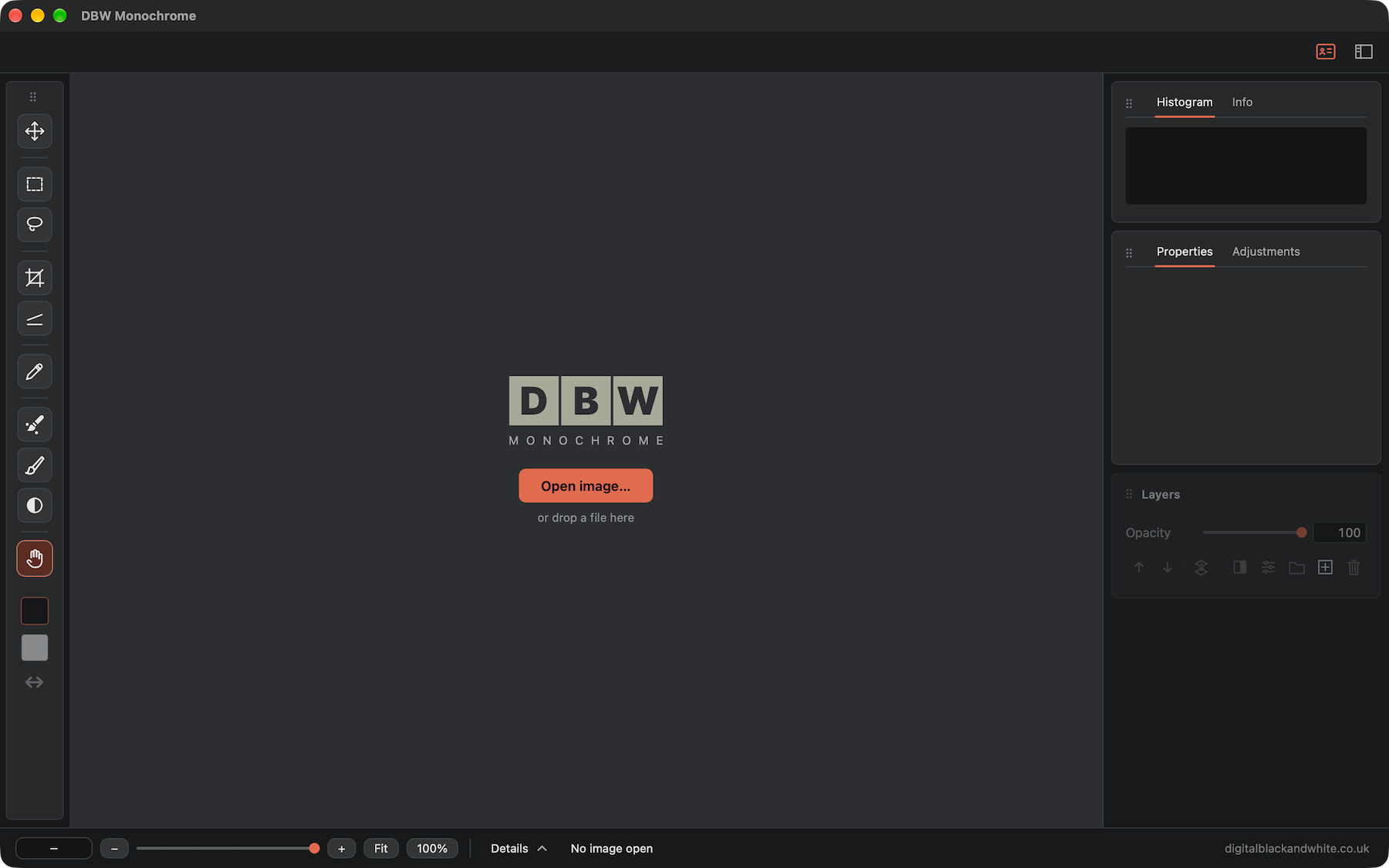
Start here
- Getting started: open a photograph and find your way around.
- RAW and colour files: turn a camera RAW or a colour picture into black and white.
- Licence and Activation: try the app, activate a licence or move it to another computer.
- Workspace and panels: arrange and dock the panels.
- Tools and toolbar: the tools and their shortcuts.
- Settings: text size, memory, scratch folder and other choices.
- Layers: add, group, clip, hide and move the parts of your edit.
- Adjustments: change tone, contrast and sharpness with Levels, Curves, Exposure, Zones, Paper Grade, Toning, Sharpen, graduated dodge and burn, vignettes and more.
- Masks: limit an adjustment to the areas you choose.
- Dodge & Burn: lighten and darken areas by hand.
- Dust spots: remove dust and small marks.
- Selections: work on part of the photograph.
- Tone Sampler and Info: read the tones of your photograph and place numbered sample points.
- Cropping and rotating: frame, turn and straighten your photograph.
- Saving and exporting: keep an editable project or create a finished image.
- Printing: print one page at the size and resolution you choose.
- Compatibility: supported computers, graphics and file types.
- Keyboard shortcuts: quick access to common commands.