Licence and Activation
DBW Monochrome can be tried before you buy a licence. In trial mode everything works, but exported and printed images carry a watermark.
Try the app
The amber Trial mode · Activate Licence button at the top right of the window shows that the app is not yet activated. Nothing else is limited.

Activate a licence
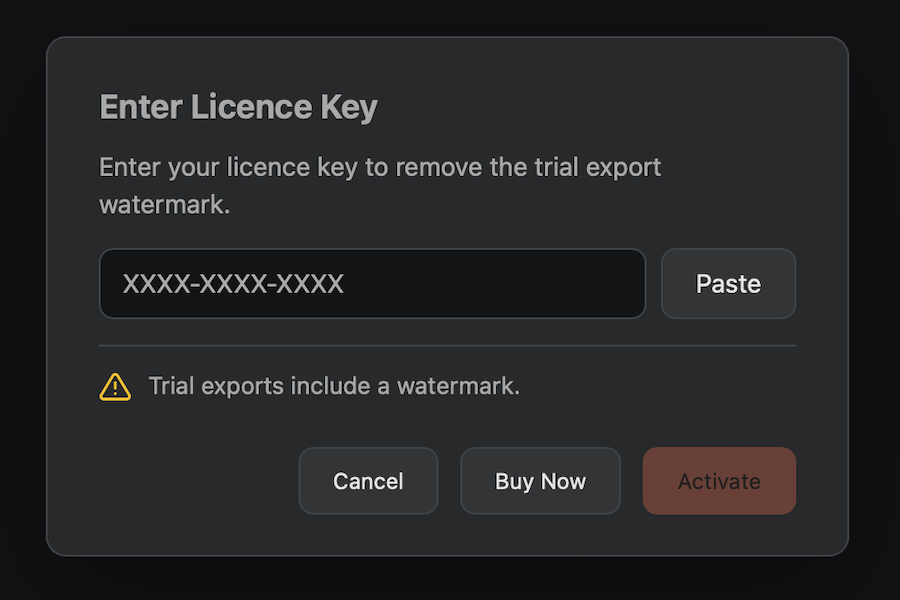
- Click Trial mode · Activate Licence.
- Paste your licence key into the box. Paste fills it from the clipboard, and Buy Now opens the website if you do not have a key yet.
- Click Activate.
Activation needs an internet connection once. After that the app checks its own licence file and works offline. The watermark disappears from new exports.
Manage your licence
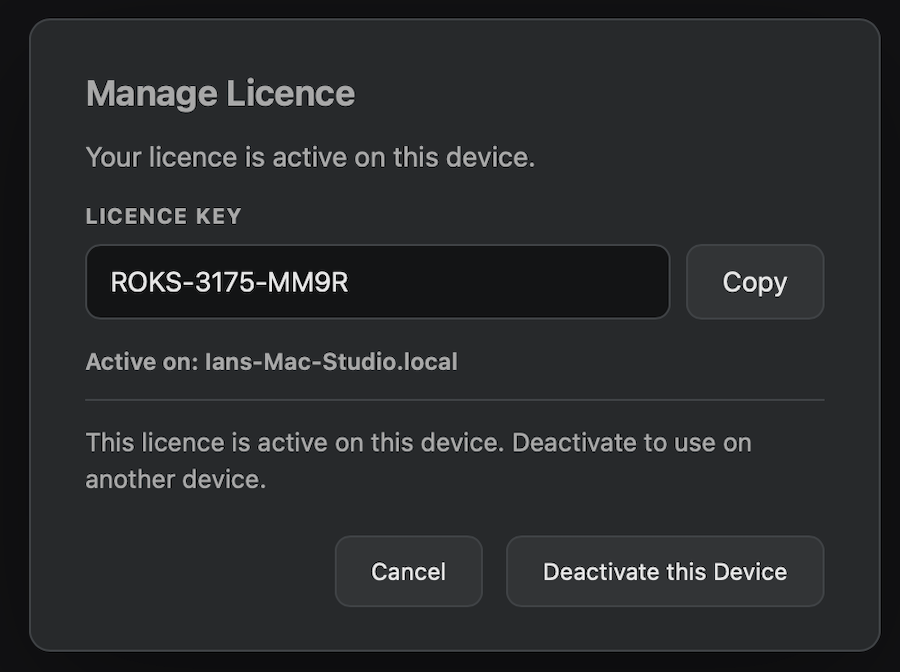
Once activated, the button becomes a licence icon. Click it to see your key and which computer it is active on. Copy copies the key.
Move a licence to another computer
A key can be active on a limited number of computers (usually two). The app cannot tell how many places are left, so if activation on a new computer is refused, free up a place by opening Manage Licence on a computer you no longer use and choosing Deactivate this Device, then activate the key on the new one. A copy of the licence file does not work on another computer; the app asks you to enter the key there.
Updates
DBW Monochrome checks once each time it starts whether a newer version is available and shows what is new, with a button to download it. Updates are never installed without you. You can turn the check off in Settings and run it by hand with Check for Updates… (in the DBW Monochrome menu on macOS, or the Help menu on Windows).