Settings
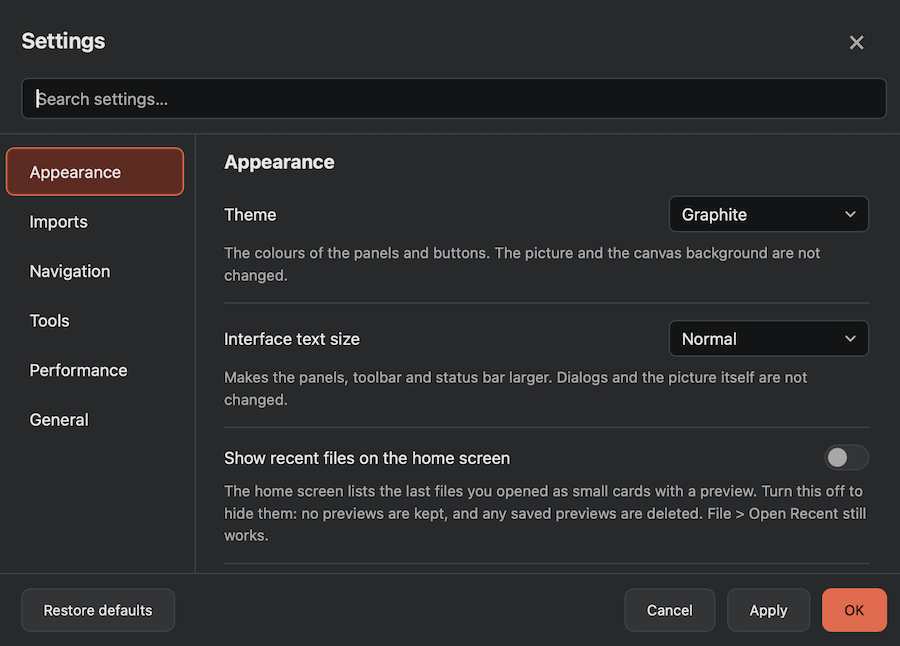
Open Settings with Cmd+,, from the DBW Monochrome menu on macOS, or from the Edit menu on Windows (Ctrl+,). Use the list on the left to choose a group, or type in the search box. OK saves your choices, Cancel discards them, and Restore defaults puts every setting back.
Appearance
-
Theme sets the colours of the panels, toolbar and buttons. Choose from:
- Charcoal: warm greys with a copper accent.
- Slate: cool blue-grey with a teal accent.
- Forest: deep green-grey with a moss-green accent.
- Plum: dusky violet with a lilac accent.
- Safelight: a darkroom palette, warm near-black with a brick-red accent.
- Graphite: neutral graphite greys with a faint cool tint and a coral accent (the default).
- Silver (light): the one light theme: light grey panels, dark text and a steel-blue accent.
The theme changes when you click Apply or OK. It does not change the picture or the canvas background (the area around the picture stays a neutral grey, even in Silver), so the tones you judge stay the same on every theme.
-
Show recent files on the home screen lists your last five files as small cards with a preview when no picture is open. Turn it off to hide them: no previews are kept, and any saved previews are deleted. File → Open Recent still works, and Clear Menu there also deletes the saved previews.
- Interface text size makes the panels and dialogs 100%, 115% or 130%. The picture itself is not affected.
- Canvas background is the colour around the picture: default grey, dark grey, middle grey, white or black. It is kept the same on every theme so it does not colour how you judge tones. You can also right-click the canvas and choose a colour from the menu.
Opening files
- Show Develop for colour files opens colour pictures in the Develop panel. When off, they open straight into the editor with a neutral grey conversion.
- Apply Auto when a RAW opens starts every RAW file from the Auto settings.
- Ask how to read a picture with no colour profile (off by default) shows a question when a file has no profile. See Pictures with no colour profile.
See RAW and colour files.
Working
- Mouse wheel zooms: when off, the wheel scrolls (hold Shift to scroll sideways) and Cmd or Ctrl with the wheel zooms.
- Remember tool settings keeps brush, dodge and spot settings between launches.
- Undo history is how many steps are kept: 20, 50, 100, 200 or 500.
Memory and speed
Large scans are held in memory. When the memory limit is reached, the least recently used parts are written to a scratch file on disk and read back when needed.
- Memory for pictures is the share of your computer's memory the app may use for pictures, 30% to 80%. Each choice shows what it comes to.
- Scratch folder is where the scratch file is kept. Choose a fast drive with plenty of space. The dialog shows the free space.
- Keep free on the scratch drive stops the app from filling the drive: below this limit it keeps pictures in memory instead.
The memory and scratch settings take effect the next time you start the app.
Updates
- Log file has an Open log folder… button. The app writes a small log (
app.log) of what it does and of any problem. If something goes wrong, send that file when you ask for help. It stays on your computer; nothing is sent anywhere. - Check for updates at launch turns the start-up check on or off. Check for Updates… still works by hand.